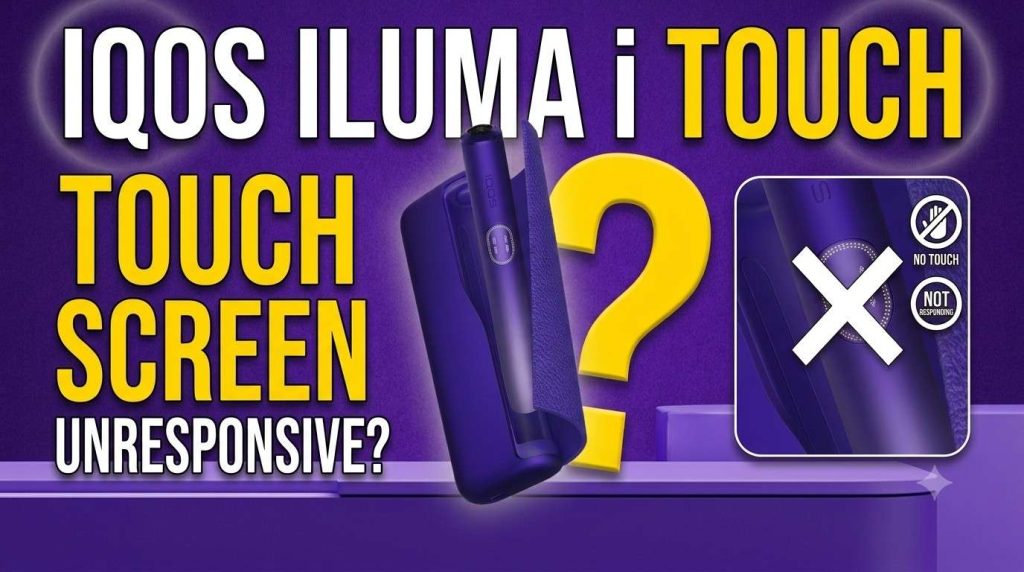
Why the Screen Stops Responding
Your ILUMA i screen goes dark or ignores your swipe, and the first thought is, “Did I just break a 500+ dirham device?” Usually not.
Looking for the device itself? See the IQOS ILUMA i ONE with current UAE pricing and same-day Dubai delivery.
There’s a real difference between a genuine screen failure and the device simply rejecting your gesture. Capacitive screens like this one don’t work like a phone screen. They’re tuned to ignore accidental contact, a brush against your pocket, a stray finger, so they can feel unresponsive when really they’re just being selective about what counts as an intentional swipe.
Most cases here come down to software state or power level, not a broken screen. Work through this guide before you assume the worst.
Devices Covered in This Guide
This applies to the current “i” generation:
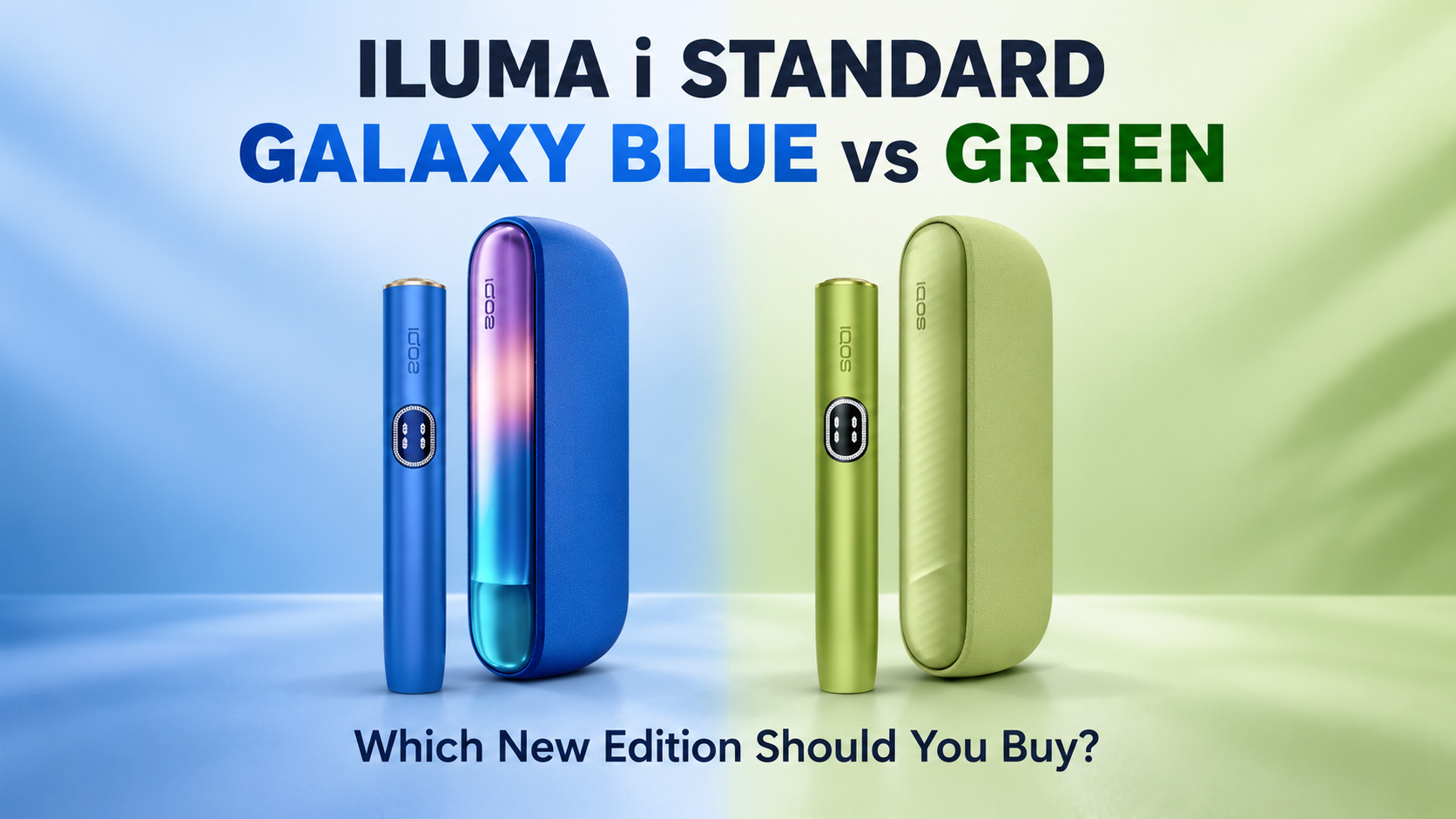
- IQOS ILUMA i Standard
- IQOS ILUMA i Prime
- IQOS ILUMA i One
One control difference matters before you troubleshoot anything: the Standard and Prime use a separate Holder and Pocket Charger, and resets happen through the charger. The i One is a single-piece design with a physical button, so its process is different. Know which one you have before you follow the steps below.
Check the App Before You Touch the Screen
Before assuming something’s wrong with the hardware, open the IQOS app. IQOS’s own troubleshooting guidance points to two app settings that directly affect how the screen behaves: AutoStart and Device Lock. If AutoStart is off, the device won’t begin heating automatically when you insert a stick. If Device Lock is active, the screen won’t respond to swipes the way you expect. Check both before you go further, it’s the fastest fix on this whole list, and it’s one people skip.
Read the Screen First
The screen is telling you something before you touch anything.
- Blank screen: the holder has no usable charge, or it’s sitting in a low-power state.
- The “0” symbol flashes three times: the holder is fully discharged. This isn’t a freeze; it’s just an empty battery, put it back in the charger.
- An error light: this can mean a temporary logic error, or that the device is running too hot. Let it cool in an air-conditioned room for a few minutes before trying again.
Gesture direction also matters more than people expect:
- Swiping up from the bottom of the screen manually starts the experience.
- Swiping down across the entire screen activates Pause Mode, which holds your session for up to 8 minutes before it ends automatically.
- Tapping or side-swiping generally gets ignored. The screen is built around full, deliberate swipes, not taps.
How to Force Restart
ILUMA i Standard and i Prime:
- Place the Holder inside the Pocket Charger and make sure it’s seated properly.
- Press and hold the Pocket Charger button for 10 seconds.
- Watch for the confirmation: all status lights turn off, blink twice, then turn back on. That’s your reset complete.
ILUMA i One:
- Remove the TEREA stick first.
- Press and hold the physical button for 10 seconds.
- Release once the lights turn off and blink to confirm.
This resets the firmware loop and re-syncs the device’s power state, which clears the vast majority of “frozen screen” complaints.
Get the Swipe Right
The single biggest reason people think their screen is broken: they’re tapping when they should be swiping.
The gesture needs to travel across the full length of the screen in one smooth, continuous motion, not a quick tap, not a half-swipe that stops partway. If your swipe is hesitant or interrupted partway through the light track, the device won’t register it as intentional. Use one finger, keep steady contact, and swipe the whole way across in a single motion.
UAE-Specific Issue: AC Condensation
Dubai’s move between outdoor heat and indoor AC is hard on a capacitive screen. Step from 45°C outside into a 20°C mall or car, and a thin film of condensation can form on the glass. Moisture on a capacitive surface interferes with how it reads your finger, so the screen can feel “blind” for a short window right after that temperature jump.
The fix is simple: wipe the screen dry with a clean, dry cloth before you try to swipe. Give it a few seconds to reach ambient temperature if the condensation is heavy.
Other Environmental Factors Worth Knowing
A few more things that throw off touch response, especially in the UAE:
- Sunscreen residue or oily hands
- Fine coastal dust or sand on the screen surface
- Wet or damp fingers
- Using the device immediately after stepping into a freezing AC environment
None of these mean anything is wrong with your device. Wipe the screen and your hands, and try again.
When Restarting Fails: Check the Charging Contacts
If the reset sequence never even triggers, the problem might not be the screen at all, it might be the connection between the Holder and the Pocket Charger.
UAE’s fine, high-silica desert dust builds up on charging contacts more aggressively than in most climates. A thin film on the pins is enough to break the connection.
Symptoms:
- Screen stays completely dark
- The charger doesn’t seem to recognize the holder is inserted
- The restart sequence simply never starts
Fix: Clean the contacts gently with a dry cotton swab. Don’t use water, alcohol, or any liquid cleaner on the charging terminals, that risks doing real damage instead of fixing a dust problem.
Pros and Cons of the Touch Interface
What works well:
- The sealed glass panel resists sand and dust intrusion better than physical buttons would
- No mechanical wear points to fail over time
- Session tracking helps you get more consistent use out of each stick
What to watch for:
- Rapid climate swings (like AC transitions) can cause temporary touch response issues
- The screen takes a bit of learning, swipe direction and a full, deliberate motion matter
- The i One’s controls are entirely physical-button based, which some users coming from Prime find less intuitive
Frequently Asked Questions
Can I clean the screen with a microfiber cloth?
Yes. Use a dry microfiber cloth only. Skip alcohol wipes or anything damp.
What does the flashing “0” mean?
The holder’s battery is fully depleted. Put it back in the charger and let it pick up at least one full charge light before trying again.
Does the IQOS ILUMA i One work the same way as the Standard and Prime?
No. The i One’s glass strip is display-only. Every action, power, reset, everything, goes through the physical button, not the screen.
Why does my screen light up but the device doesn’t heat?
Usually a swipe direction or completeness issue. Try again with one full, unbroken swipe from bottom to top.
When Replacement Is the Better Option
A reset and a clean won’t fix everything. Consider contacting IQOS support or an authorized service point if you’re seeing:
- Repeated errors that come back right after every reset
- A battery that drains almost immediately after a full charge
- A screen that never lights up even after confirmed charging
If your device was purchased in the UAE and is still within its warranty period, check your purchase documentation before paying for a repair, you may be covered.
To buy original products in UAE, order from TEREA Dubai
The Bottom Line
Most “broken” ILUMA i screens aren’t broken at all. Nine times out of ten it’s a swipe technique issue, a depleted battery reading as a frozen screen, or UAE’s climate doing exactly what UAE’s climate does to electronics. Run through the app settings, get your swipe technique right, and keep the contacts clean, and the device usually sorts itself out. A genuine hardware fault is the exception here, not the rule.