
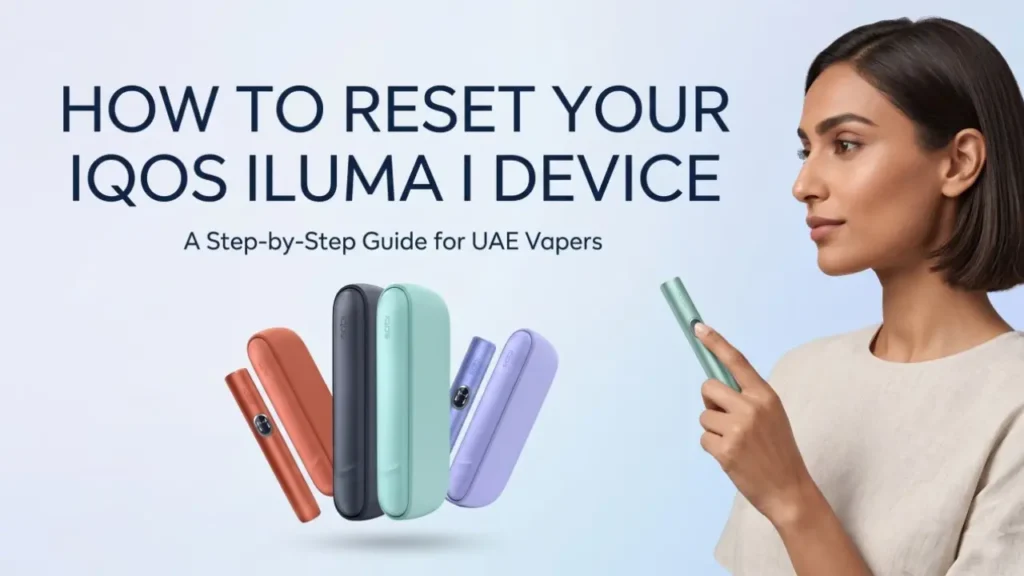
How to Reset Your IQOS ILUMA i Device: Step-by-Step Guide for UAE Vapers
Fix red lights & frozen screens on your IQOS ILUMA i, ONE, or PRIME. Easy 10-second reset steps tailored for UAE users to beat the heat and stay vaping.
On this page · 13 sections
- What Is the IQOS ILUMA i Series?
- Why UAE Users Need to Reset More Often
- IQOS ILUMA i Status Light Guide: What Do the Lights Mean?
- How to Reset IQOS ILUMA i ONE: Step by Step
- How to Reset IQOS ILUMA i Standard: Step by Step
- How to Reset IQOS ILUMA i PRIME: Step by Step
- Post-Reset Checklist: Make Sure the Fix Worked
- IQOS ILUMA i Troubleshooting: When to Reset vs When to Do Something Else
- What to Do If the Reset Does Not Work
- UAE Warranty: What You Need to Know
- Maintenance Tips to Avoid Future Resets
- Final Thoughts
- Frequently Asked Questions
If your IQOS ILUMA i is acting up, the screen is frozen, or you are seeing a red light that just will not go away, you are not alone. Many UAE vapers face this exact situation, especially during the hotter months when temperatures outside push past 40°C and the device has gone from a scorching car to a cold, air-conditioned room in minutes.
Looking for the device itself? See the IQOS ILUMA i ONE with current UAE pricing and same-day Dubai delivery.
The good news? A simple 10-second reset fixes nearly 90% of all common IQOS ILUMA problems. This guide walks you through the exact steps for every model in the ILUMA i family, explains what each status light means, and tells you what to do if the reset does not work.
Let us get your device back up and running.
What Is the IQOS ILUMA i Series?
The IQOS ILUMA i series is Philip Morris International’s latest generation of heat-not-burn devices available across the UAE, including Dubai, Abu Dhabi, Sharjah, and all other emirates. These devices use the SMARTCORE Induction System, which heats tobacco from the inside without any blade or heating pin. That means no cleaning of burnt residue, a smoother flavour, and a more consistent experience every time.
The ILUMA i family has three models, and each one works a little differently when it comes to troubleshooting and resets:
| Model | Key Feature | Reset Method |
| IQOS ILUMA i ONE | Compact, all-in-one body | Press button directly on device |
| IQOS ILUMA i Standard | Separate Holder + Pocket Charger | Reset through Pocket Charger |
| IQOS ILUMA i PRIME | Touch Screen, FlexPuff, Pause Mode | Reset through Pocket Charger |
| IQOS Iluma I Electric | Touch screen, Pause Mode, FlexPuff, FlexBattery | Reset through Pocket Charger |
Why UAE Users Need to Reset More Often
Living in the UAE creates some very specific challenges for IQOS ILUMA i devices that users in cooler countries simply do not deal with.
Here is what triggers most software glitches and device lock-ups for UAE vapers:
- Car dashboard heat: Leaving your device on the dashboard or inside a parked car where temperatures easily reach 60°C or above causes the device firmware to lock for safety. The internal metal induction strip overheats and the device shuts itself down.
- Thermal shock from AC: Going from 44°C outside heat directly into a 20°C air-conditioned room creates rapid temperature changes that confuse the device software.
- Dust and sand in charging contacts: UAE air carries fine sand particles that settle in the charging port and on the charging contacts, which disrupts power delivery and can cause charging failures.
- Non-official chargers: Using a third-party USB adapter sends inconsistent power to the device, which confuses the ILUMA i battery management system and can cause it to freeze.
- Back-to-back sessions: Running multiple sessions without a cooling gap of at least 5 minutes puts extra heat stress on the device, especially in summer.
The operating temperature range for IQOS ILUMA i devices is 0°C to 50°C. The UAE regularly pushes devices right to that upper limit outdoors, which is why a simple reset is the most important troubleshooting skill you can have.
IQOS ILUMA i Status Light Guide: What Do the Lights Mean?
Before you reset anything, it helps to understand what your device is actually telling you. The status lights on your IQOS ILUMA i are the device’s way of communicating its condition.
| Light Colour and Pattern | What It Means | Action Needed |
| White, solid | Device is on and ready | None |
| White, pulsing | Heating in progress | Wait for session to start |
| White, one light blinking | Last 30 seconds or 2 puffs remaining | Finish up and remove TEREA stick |
| White, all blinking twice then off | Temperature out of range (0°C to 50°C) | Let device cool down |
| Yellow, blinking at bottom | Battery is low | Charge immediately |
| All lights off, blink twice, back on | Successful reset confirmed | You are good to go |
| Red, blinking | Error or fault detected | Reset or contact IQOS UAE support |
A red blinking light is the most common reason UAE vapers search for help online. In most cases, it is either a temperature fault from heat exposure or a software glitch that a simple 10-second reset will fix in seconds.
How to Reset IQOS ILUMA i ONE: Step by Step
The IQOS ILUMA i ONE is an all-in-one device, meaning the Holder and charger are built into one compact body. Because of this, the reset process is done directly on the device itself.
Before you start:
- Make sure no TEREA SMARTCORE stick is inside the heating chamber
- Check that the device has some charge (at least one status light should appear when you press the button)
- Move the device indoors, away from direct sunlight or extreme heat
Reset steps for IQOS ILUMA i ONE:
- Hold the device in your hand with the button facing you
- Press and hold the button for exactly 10 seconds
- Watch the status lights: they will slowly fade out
- Keep holding until the lights blink twice in white
- Release the button once the lights come back on
- The device will vibrate once to confirm the reset is complete
That is it. The whole process takes about 15 seconds. Once you feel that single vibration and see the lights return, your IQOS ILUMA i ONE has been successfully reset and is ready to use again.
If it does not work the first time: Make sure the device has enough battery. A completely dead battery will not allow a reset. Charge it for at least 15 to 20 minutes using the official IQOS USB-C cable and power adaptor, then try again.
How to Reset IQOS ILUMA i Standard: Step by Step
The IQOS ILUMA i Standard has a separate Holder and Pocket Charger. For this model, the reset is done through the Pocket Charger, not on the Holder itself.
Before you start:
- Make sure the Pocket Charger has enough charge
- Remove any TEREA stick from the Holder
- Clean the charging contacts on both the Holder and the Pocket Charger with a dry cotton swab
Reset steps for IQOS ILUMA i Standard:
- Place the Holder inside the Pocket Charger, making sure it is seated properly and the contacts are aligned
- Close the Pocket Charger lid
- Press and hold the Pocket Charger button for 10 seconds
- All status lights on the Pocket Charger will turn OFF
- Continue holding until the lights blink twice in white
- Release the button once the lights come back on steadily
The reset is confirmed when all status lights return after the two white blinks. Your IQOS ILUMA i Standard is now ready to use.
Pro tip for UAE users: If the Pocket Charger button feels unresponsive, check the contacts for dust. A light wipe with a dry cloth often fixes contact issues that make the button seem like it is not registering.
How to Reset IQOS ILUMA i PRIME: Step by Step
The IQOS ILUMA i PRIME is the premium model in the ILUMA i family. It has a Touch Screen, FlexPuff technology, Pause Mode, and FlexBattery features. Because of the Touch Screen, a frozen or unresponsive screen is one of the most common issues PRIME users report, and a reset is almost always the fix.
Before you start:
- Seat the Holder properly inside the Pocket Charger
- Make sure the Pocket Charger has enough battery
- Remove any TEREA stick from the Holder
Reset steps for IQOS ILUMA i PRIME:
- Insert the Holder into the Pocket Charger, pressing it in firmly so the contacts connect
- Press and hold the Pocket Charger button for 10 seconds
- The Touch Screen will go dark and all status lights will turn off
- Keep holding the button through the full 10 seconds
- Two white blinks will appear on the status lights
- Release the button once the lights come back on
Your IQOS ILUMA i PRIME is now reset and fully operational.
Important fact many PRIME users do not know: A reset does NOT erase your FlexPuff history, your usage data, or any personalised settings saved in the IQOS app. A reset only clears temporary software glitches. Your data stays safe inside the device’s internal memory.
Also for PRIME users: The ILUMA i PRIME is the only model in the series that comes with Accidental Damage protection under the UAE warranty. This means if you accidentally drop or damage the device, you get one free replacement within the warranty period.
Is IQOS ILUMA i Worth the Price in UAE? Honest Cost vs Value Guide
Post-Reset Checklist: Make Sure the Fix Worked
After completing the reset, do not just assume everything is fine. Go through this quick checklist to confirm your device is working properly.
- Check battery status: Press the button once briefly. The status lights should show the battery level. If only one light blinks yellow, charge the device fully before your first post-reset session.
- Insert a fresh TEREA stick: Use a new TEREA stick from a freshly opened pack. A stale or humidity-damaged stick can make it seem like the device is still not working.
- Test the heating: Wait for the device to complete its full heating cycle. You should feel a vibration and see the status lights stabilise before you start your session.
- Clean the contacts: Use a dry cotton swab to wipe the charging contacts on both the Holder and Pocket Charger. Dust is common in UAE environments and blocks proper power flow.
- Check for firmware updates: Open the IQOS app on your phone and go to My Device. If an update is available, install it. Outdated firmware is one of the most overlooked causes of recurring glitches.
- Reconnect via IQOS app: If your device was previously paired, re-sync it with the IQOS app to restore your personalised settings like FlexPuff preferences.
IQOS ILUMA i Troubleshooting: When to Reset vs When to Do Something Else
Not every problem needs a reset. Here is a simple guide to help you decide the right fix:
| Problem | Try First | Try Second | Try Third |
| Red light blinking | Cool device in AC for 20 min | Reset | Contact IQOS UAE support |
| Device not heating | Check TEREA stick flavor is fresh | Clean contacts, then reset | Firmware update |
| Touch screen frozen (PRIME) | Reset | Firmware update | Visit IQOS boutique |
| Not charging | Check cable and adapter | Clean contacts | Reset |
| FlexPuff not activating | Ensure TEREA stick inserted correctly | Reset | Firmware update |
| Weak vapour | Use fresh TEREA stick | Clean induction chamber | Reset |
| Device will not turn on | Charge for 20 minutes | Reset | Warranty claim |
What to Do If the Reset Does Not Work
Most of the time, one reset is all you need. But if the problem persists after resetting, here is the escalation path that IQOS UAE support recommends.
Step 1: Cool the device down first
If the issue was caused by heat exposure, a reset alone may not help if the device is still warm. Leave it in a cool, air-conditioned room for 20 minutes, then try the reset again. Three white blinks on the ILUMA i ONE usually mean the device is outside its safe temperature range, not a software glitch.
Step 2: Charge fully before resetting again
A partially discharged battery can cause the reset to fail. Charge the device using only the official IQOS power adaptor and USB-C cable for at least 75 to 90 minutes until fully charged, then attempt the reset one more time.
Step 3: Contact IQOS UAE customer support
If two reset attempts fail, it is time to reach out to the IQOS UAE care team directly. Before you call or message, have these ready:
- Your device’s serial number (found on the back of the device or in the IQOS app)
- Your proof of purchase or receipt
- A short video or photos showing the error lights (for example, the red light blinking pattern)
The IQOS UAE support team can usually diagnose the issue and initiate a warranty replacement if needed.
Step 4: Visit the IQOS Boutique at Dubai Mall
For in-person support, the IQOS Boutique at The Dubai Mall is the official service location in the UAE. Bring your device, serial number, and receipt. Staff can run diagnostics on the spot and process warranty replacements directly.
UAE Warranty: What You Need to Know
Your IQOS ILUMA i device comes with a standard 1-year warranty from the date of purchase in the UAE. If you register your device through the IQOS app or on the IQOS UAE website, your warranty extends to 2 full years.
Here is what the warranty covers and what it does not:
Covered under warranty:
- Manufacturing defects in the Holder and Pocket Charger
- Device not heating due to a hardware fault
- Charging failures caused by internal component issues
- Software defects that cannot be resolved through reset or firmware update
Not covered under warranty:
- Physical damage from drops or impacts (exception: PRIME users get one free accidental damage replacement)
- Liquid damage
- Damage from using non-TEREA sticks or non-official accessories
- Normal wear and tear
Replacement timeline in UAE:
- Dubai and Abu Dhabi: usually within 24 hours of claim approval
- Other emirates: 1 to 2 business days
Maintenance Tips to Avoid Future Resets
Prevention is always better than troubleshooting. These habits will keep your IQOS ILUMA i running smoothly in UAE conditions without needing frequent resets.
- Never leave the device inside a parked car, even for a short time. Car interiors in UAE summers easily reach 70°C or above.
- Always use the official IQOS power adaptor. Third-party chargers deliver inconsistent power that stresses the battery management system.
- Clean the charging contacts on both the Holder and Pocket Charger at least once a week using a dry cotton swab.
- Allow a 5-minute gap between sessions, especially during summer. Back-to-back sessions push the device to its temperature limit very quickly.
- Store TEREA SMARTCORE sticks in a cool, dry place. Sticks stored in humid conditions or excessive heat lose quality and can produce weak vapour that you might mistake for a device fault.
- Keep your device firmware updated. Open the IQOS app regularly and install updates when they are available.
- Never try to use old HEETS or any tobacco stick from a previous IQOS generation. The ILUMA i series only works with TEREA SMARTCORE sticks, and using the wrong sticks can damage the induction coil.
Final Thoughts
A reset is the fastest and most effective fix for nearly every common IQOS ILUMA i problem UAE vapers face. Whether you own the compact ILUMA i ONE, the two-piece Standard, or the premium PRIME with its touch screen and FlexPuff features, the 10-second reset process is your first line of defence.
If the reset does not solve the problem after two attempts, reach out to IQOS UAE customer support or visit the IQOS Boutique at Dubai Mall. Your device may qualify for a free warranty replacement, often delivered within 24 hours in Dubai and Abu Dhabi.
You can find the authentic IQOS ILUMA i Device at our Terea Dubai online store. Get the best deals now.
Frequently Asked Questions
Does resetting erase my FlexPuff history or usage data?
No. A standard 10-second reset only clears temporary software glitches. Your FlexPuff history, usage patterns, and app settings stored in the device memory are not affected.
Can I reset my IQOS ILUMA i while it is plugged in and charging?
Yes. Resetting while the device is plugged in is actually recommended if the device froze or became unresponsive during a charging session. The reset process works the same way.
Why is my IQOS still showing a red light after the reset?
A red light that stays on after a reset usually means one of two things. Either the device is still too hot and needs more time to cool down in a room-temperature AC environment, or there is a hardware fault. If the light continues after the device has cooled and been reset a second time, contact IQOS UAE support.
What do three white blinks mean on my IQOS ILUMA i?
Three white blinks indicate that the device is outside its safe operating temperature range of 0°C to 50°C. In UAE conditions, this almost always means the device is too hot. Move it to a cool, shaded spot and allow 20 minutes before trying again.
How often should I reset my IQOS ILUMA i?
There is no need to reset on a schedule. Only reset when you experience a specific problem such as a frozen screen, a persistent red light, a heating failure, or a charging issue that does not resolve after cleaning the contacts.
Will a reset fix a charging problem?
It depends on the cause. If the charging issue is a software glitch, yes, a reset will fix it. If the problem is a dirty contact, clean the contacts first. If it is a damaged cable or adapter, replace those first. A reset is always worth trying as a first step.
Where is the nearest IQOS service centre in Dubai?
The official IQOS Boutique is located at The Dubai Mall. You can also contact the IQOS UAE support team via the contact page on iqos.com/ae for WhatsApp support or phone assistance.
Writes for Terea Heets Dubai. About our editorial team
 IQOS BONDS and BLENDS Explained: How the System Works in the UAE
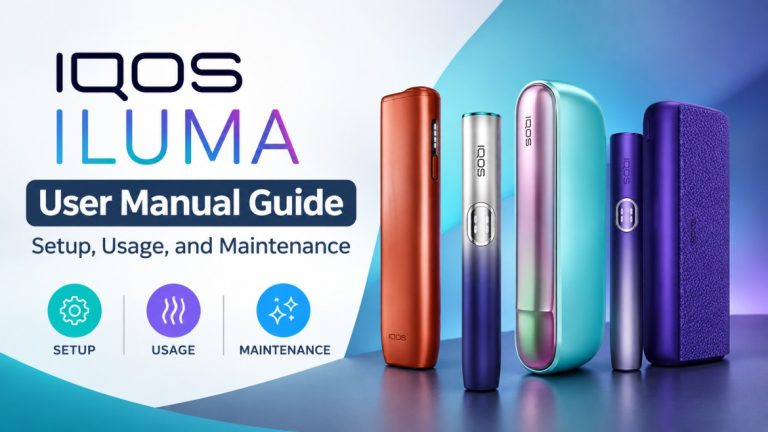 IQOS ILUMA User Manual Guide: Setup, Usage, and Maintenance
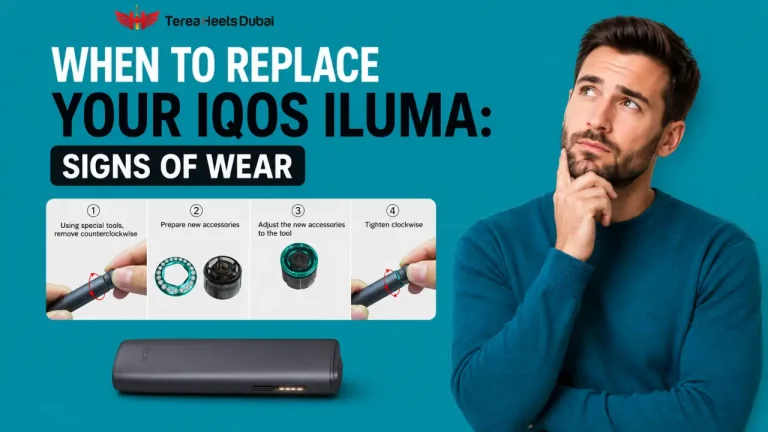 When Should You Replace Your IQOS ILUMA Device: Signs of Wear
 Short Puffs vs Long Puffs on ILUMA i: Which Is Better?
 IQOS ILUMA i Charging Issues & Fixes: Everything You Need to Know
 IQOS ILUMA Light & Vibration Signals Decoded: Complete Status Guide for UAE Vapers